> ## Documentation Index
> Fetch the complete documentation index at: https://docs-staging-feat-docs-5554-self-service.mintlify.site/llms.txt
> Use this file to discover all available pages before exploring further.

> Learn how to configure an update policy form using Forms for Actions for users to review and accept new terms of service or consent updates.

# Use Cases: Configure an update policy form using Forms

<Card title="Before you start">
  1. Create a [Machine-to-Machine Application](/docs/get-started/auth0-overview/create-applications/machine-to-machine-apps) with the following scopes enabled:

  * `read:users`
  * `update:users`
  * `create:users`
  * `read:users_app_metadata`
  * `update:users_app_metadata`
  * `create:users_app_metadata`

  2. Add a [Vault connection](/docs/customize/forms/vault) using the M2M application credentials.
</Card>

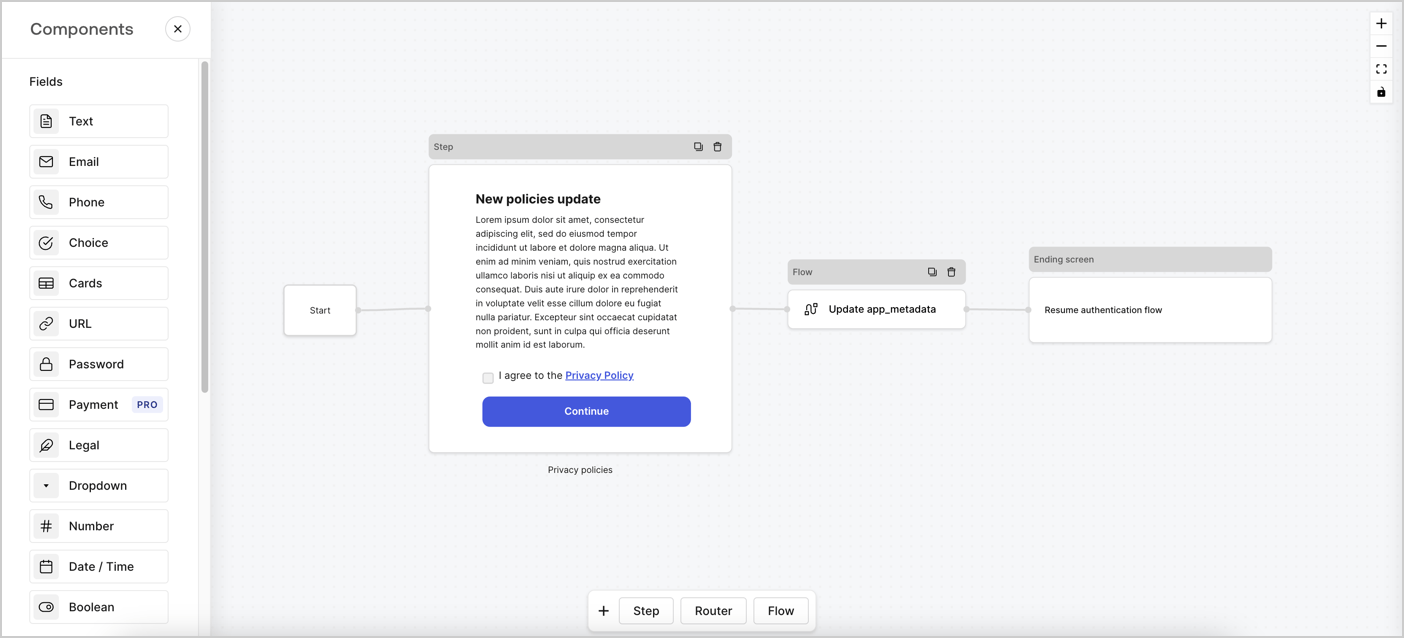
Forms for Actions allows you to create custom privacy policies flows and store the consent under the `app_metadata` object.
<Frame>
  <img src="https://mintcdn.com/docs-staging-feat-docs-5554-self-service/d9MneORhdBUj_Liz/docs/images/cdy7uua7fh8z/6i68dMvHDTijfRmSgN1x8Q/ad900e7d4c0fb34645921435472b8684/privavy-policy-form.png?fit=max&auto=format&n=d9MneORhdBUj_Liz&q=85&s=ff90307295fef7529cd525770500b174" alt="Dashboard > Actions > Forms > Privacy policy use case" data-og-width="1404" width="1404" data-og-height="638" height="638" data-path="docs/images/cdy7uua7fh8z/6i68dMvHDTijfRmSgN1x8Q/ad900e7d4c0fb34645921435472b8684/privavy-policy-form.png" data-optimize="true" data-opv="3" srcset="https://mintcdn.com/docs-staging-feat-docs-5554-self-service/d9MneORhdBUj_Liz/docs/images/cdy7uua7fh8z/6i68dMvHDTijfRmSgN1x8Q/ad900e7d4c0fb34645921435472b8684/privavy-policy-form.png?w=280&fit=max&auto=format&n=d9MneORhdBUj_Liz&q=85&s=66401f404eec6b6726c521ba9241ca1c 280w, https://mintcdn.com/docs-staging-feat-docs-5554-self-service/d9MneORhdBUj_Liz/docs/images/cdy7uua7fh8z/6i68dMvHDTijfRmSgN1x8Q/ad900e7d4c0fb34645921435472b8684/privavy-policy-form.png?w=560&fit=max&auto=format&n=d9MneORhdBUj_Liz&q=85&s=98a8c893d1edb76096a52225871862b7 560w, https://mintcdn.com/docs-staging-feat-docs-5554-self-service/d9MneORhdBUj_Liz/docs/images/cdy7uua7fh8z/6i68dMvHDTijfRmSgN1x8Q/ad900e7d4c0fb34645921435472b8684/privavy-policy-form.png?w=840&fit=max&auto=format&n=d9MneORhdBUj_Liz&q=85&s=bc29b3c97dc1555b08fc3b3af7a97e58 840w, https://mintcdn.com/docs-staging-feat-docs-5554-self-service/d9MneORhdBUj_Liz/docs/images/cdy7uua7fh8z/6i68dMvHDTijfRmSgN1x8Q/ad900e7d4c0fb34645921435472b8684/privavy-policy-form.png?w=1100&fit=max&auto=format&n=d9MneORhdBUj_Liz&q=85&s=759906ec00986bd6d974100532a83fb7 1100w, https://mintcdn.com/docs-staging-feat-docs-5554-self-service/d9MneORhdBUj_Liz/docs/images/cdy7uua7fh8z/6i68dMvHDTijfRmSgN1x8Q/ad900e7d4c0fb34645921435472b8684/privavy-policy-form.png?w=1650&fit=max&auto=format&n=d9MneORhdBUj_Liz&q=85&s=876218053de098a7dcd5ba1e0ba04d84 1650w, https://mintcdn.com/docs-staging-feat-docs-5554-self-service/d9MneORhdBUj_Liz/docs/images/cdy7uua7fh8z/6i68dMvHDTijfRmSgN1x8Q/ad900e7d4c0fb34645921435472b8684/privavy-policy-form.png?w=2500&fit=max&auto=format&n=d9MneORhdBUj_Liz&q=85&s=5f90050dc7f59ab6377804e056a2f79f 2500w" />
</Frame>

The sections below outline how you can create an Update Policy form using nodes and flows, along with steps for adding your form to a [Post Login](/docs/customize/actions/explore-triggers/signup-and-login-triggers/login-trigger) Action.

## Create a form from scratch

Follow these steps to create a form to gather information:

1. Open the Form editor by selecting **Auth0 Dashboard > Actions > Forms.**
2. Select **Create Form** > **Start from scratch**.

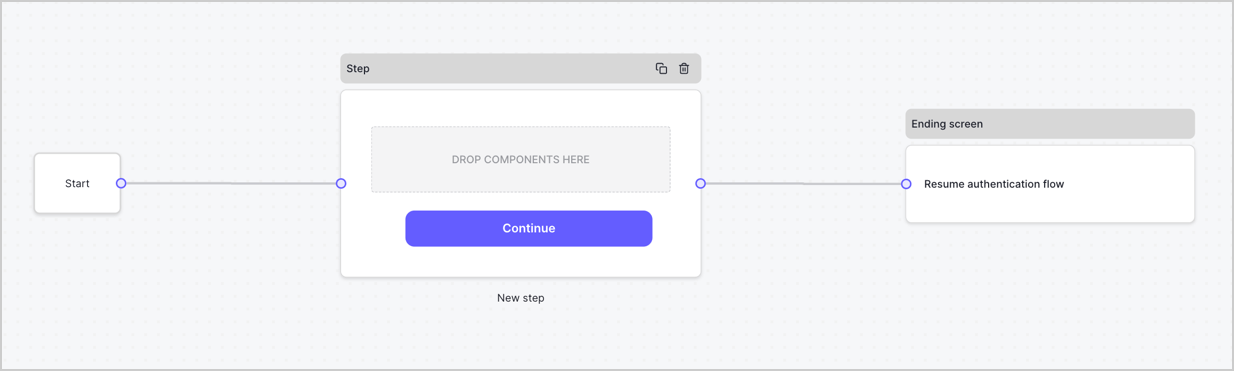
By default, a new form contains a Start node, a Step node, and an Ending screen node.
<Frame>
  <img src="https://mintcdn.com/docs-staging-feat-docs-5554-self-service/2e84f1JHhK_1FkcJ/docs/images/cdy7uua7fh8z/2TZ9jSjgEcARFpULI6hz4R/a4319a1bd482f2ee5cc23100fdb2f42c/New-form-Forms-for-action-use-case.png?fit=max&auto=format&n=2e84f1JHhK_1FkcJ&q=85&s=4c312b824721d801e17aac552da9898e" alt="Dashboard > Forms > Use Cases > Form" data-og-width="1234" width="1234" data-og-height="371" height="371" data-path="docs/images/cdy7uua7fh8z/2TZ9jSjgEcARFpULI6hz4R/a4319a1bd482f2ee5cc23100fdb2f42c/New-form-Forms-for-action-use-case.png" data-optimize="true" data-opv="3" srcset="https://mintcdn.com/docs-staging-feat-docs-5554-self-service/2e84f1JHhK_1FkcJ/docs/images/cdy7uua7fh8z/2TZ9jSjgEcARFpULI6hz4R/a4319a1bd482f2ee5cc23100fdb2f42c/New-form-Forms-for-action-use-case.png?w=280&fit=max&auto=format&n=2e84f1JHhK_1FkcJ&q=85&s=073a4fe161e165e1c3edec53757f7c2b 280w, https://mintcdn.com/docs-staging-feat-docs-5554-self-service/2e84f1JHhK_1FkcJ/docs/images/cdy7uua7fh8z/2TZ9jSjgEcARFpULI6hz4R/a4319a1bd482f2ee5cc23100fdb2f42c/New-form-Forms-for-action-use-case.png?w=560&fit=max&auto=format&n=2e84f1JHhK_1FkcJ&q=85&s=4b8c56e8afc04782055baf64a130ce73 560w, https://mintcdn.com/docs-staging-feat-docs-5554-self-service/2e84f1JHhK_1FkcJ/docs/images/cdy7uua7fh8z/2TZ9jSjgEcARFpULI6hz4R/a4319a1bd482f2ee5cc23100fdb2f42c/New-form-Forms-for-action-use-case.png?w=840&fit=max&auto=format&n=2e84f1JHhK_1FkcJ&q=85&s=2f3c2310c6629c0d22a93d80546026d3 840w, https://mintcdn.com/docs-staging-feat-docs-5554-self-service/2e84f1JHhK_1FkcJ/docs/images/cdy7uua7fh8z/2TZ9jSjgEcARFpULI6hz4R/a4319a1bd482f2ee5cc23100fdb2f42c/New-form-Forms-for-action-use-case.png?w=1100&fit=max&auto=format&n=2e84f1JHhK_1FkcJ&q=85&s=f228cbc80198cb7262a1c14e39eb37ed 1100w, https://mintcdn.com/docs-staging-feat-docs-5554-self-service/2e84f1JHhK_1FkcJ/docs/images/cdy7uua7fh8z/2TZ9jSjgEcARFpULI6hz4R/a4319a1bd482f2ee5cc23100fdb2f42c/New-form-Forms-for-action-use-case.png?w=1650&fit=max&auto=format&n=2e84f1JHhK_1FkcJ&q=85&s=e3351ef07510dbbf99497c0d1a7fe1fa 1650w, https://mintcdn.com/docs-staging-feat-docs-5554-self-service/2e84f1JHhK_1FkcJ/docs/images/cdy7uua7fh8z/2TZ9jSjgEcARFpULI6hz4R/a4319a1bd482f2ee5cc23100fdb2f42c/New-form-Forms-for-action-use-case.png?w=2500&fit=max&auto=format&n=2e84f1JHhK_1FkcJ&q=85&s=33acd9e64287c0b5d43d1ba6bac52f41 2500w" />
</Frame>

### Configure the Step node

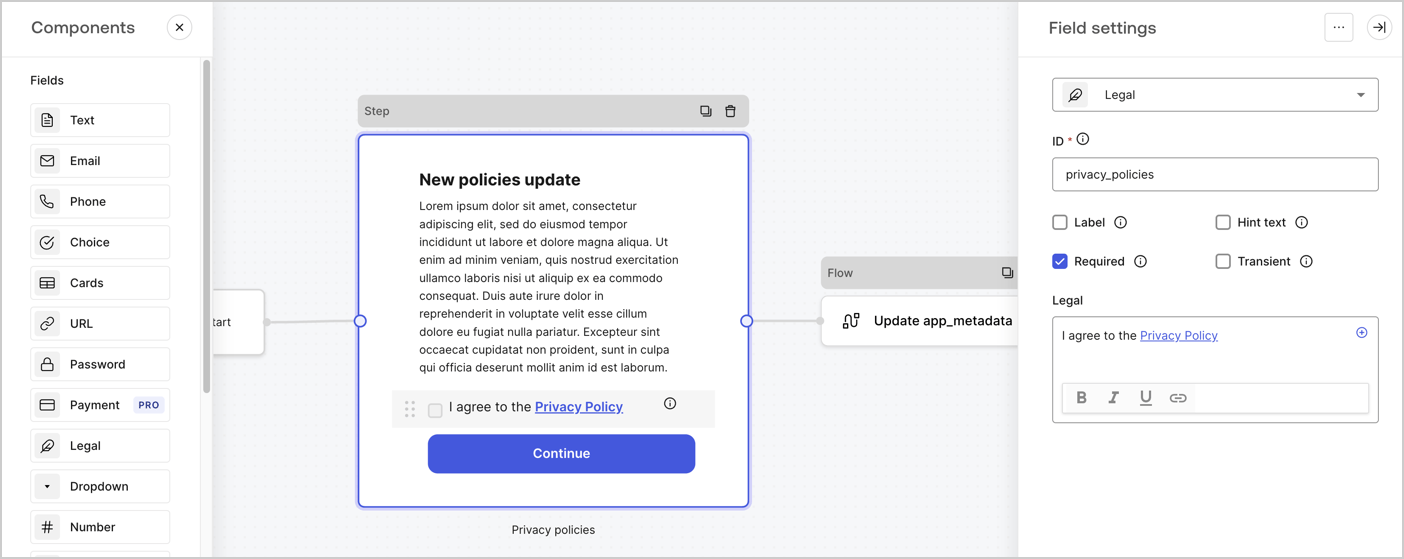
The Step node is the graphical interface visible to users. Add [Fields](/docs/customize/forms/nodes-and-components) to the Step node to collect the new agreement acceptance value by following these steps:

1. Drag a **Rich text** field from the **Components menu** into the **Step** node.

   * **Rich text**: Enter a description of your privacy policies updates.
   * Select **Save**.
2. Drag a **Legal** field into the **Step** node.

   * **ID**: Enter `privacy_policies`.
   * **Required**: Enable the checkbox.
   * **Legal**: Enter `I agree to the Privacy Policy`.
   * Select **Save**.
3. Select **Publish** to save.
<Frame>
  <img src="https://mintcdn.com/docs-staging-feat-docs-5554-self-service/0SQlyFTQ1TFVa8wB/docs/images/cdy7uua7fh8z/59zFFjQjAnjogkc2QGIqqJ/0ad66b1b636544122aa4e65968b76c2c/privacy-policy-step-node.png?fit=max&auto=format&n=0SQlyFTQ1TFVa8wB&q=85&s=02e93955f3e87fdf44b151131e141ab0" alt="Dashboard > Actions > Forms > Use case privacy policy step node" data-og-width="1404" width="1404" data-og-height="559" height="559" data-path="docs/images/cdy7uua7fh8z/59zFFjQjAnjogkc2QGIqqJ/0ad66b1b636544122aa4e65968b76c2c/privacy-policy-step-node.png" data-optimize="true" data-opv="3" srcset="https://mintcdn.com/docs-staging-feat-docs-5554-self-service/0SQlyFTQ1TFVa8wB/docs/images/cdy7uua7fh8z/59zFFjQjAnjogkc2QGIqqJ/0ad66b1b636544122aa4e65968b76c2c/privacy-policy-step-node.png?w=280&fit=max&auto=format&n=0SQlyFTQ1TFVa8wB&q=85&s=0fd711a05be1721c49c423064b358e1b 280w, https://mintcdn.com/docs-staging-feat-docs-5554-self-service/0SQlyFTQ1TFVa8wB/docs/images/cdy7uua7fh8z/59zFFjQjAnjogkc2QGIqqJ/0ad66b1b636544122aa4e65968b76c2c/privacy-policy-step-node.png?w=560&fit=max&auto=format&n=0SQlyFTQ1TFVa8wB&q=85&s=d4c1d693812b10d78b2089e9345c3348 560w, https://mintcdn.com/docs-staging-feat-docs-5554-self-service/0SQlyFTQ1TFVa8wB/docs/images/cdy7uua7fh8z/59zFFjQjAnjogkc2QGIqqJ/0ad66b1b636544122aa4e65968b76c2c/privacy-policy-step-node.png?w=840&fit=max&auto=format&n=0SQlyFTQ1TFVa8wB&q=85&s=ed5161524a38351476c71d77c986a23a 840w, https://mintcdn.com/docs-staging-feat-docs-5554-self-service/0SQlyFTQ1TFVa8wB/docs/images/cdy7uua7fh8z/59zFFjQjAnjogkc2QGIqqJ/0ad66b1b636544122aa4e65968b76c2c/privacy-policy-step-node.png?w=1100&fit=max&auto=format&n=0SQlyFTQ1TFVa8wB&q=85&s=be46cfba5130152b8a8cf4cbd1b4065b 1100w, https://mintcdn.com/docs-staging-feat-docs-5554-self-service/0SQlyFTQ1TFVa8wB/docs/images/cdy7uua7fh8z/59zFFjQjAnjogkc2QGIqqJ/0ad66b1b636544122aa4e65968b76c2c/privacy-policy-step-node.png?w=1650&fit=max&auto=format&n=0SQlyFTQ1TFVa8wB&q=85&s=1da4942ced9d0484db96b3c18aec4dab 1650w, https://mintcdn.com/docs-staging-feat-docs-5554-self-service/0SQlyFTQ1TFVa8wB/docs/images/cdy7uua7fh8z/59zFFjQjAnjogkc2QGIqqJ/0ad66b1b636544122aa4e65968b76c2c/privacy-policy-step-node.png?w=2500&fit=max&auto=format&n=0SQlyFTQ1TFVa8wB&q=85&s=5a0cda95c7e81d360b77ebbf28e34173 2500w" />
</Frame>

### Configure the Flow node

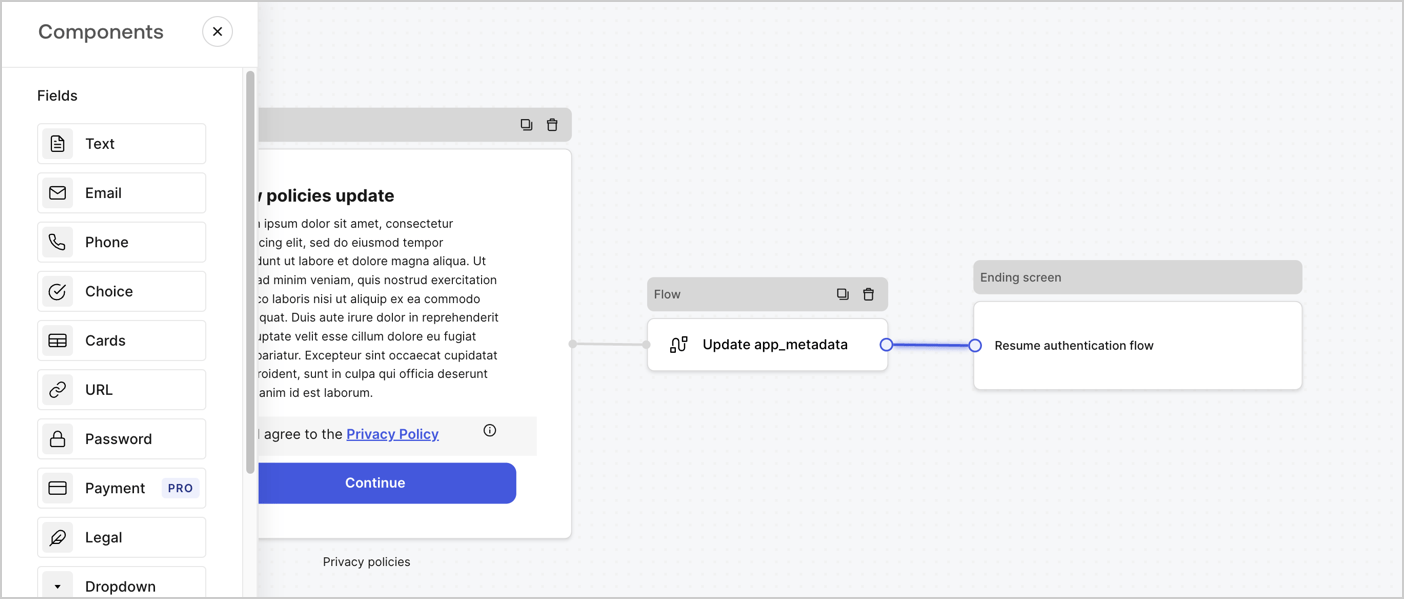
Add a **Flow** node after the **Step** node to update the `app_metadata` and resume the authentication flow by following these steps:

1. Select **Flow** from the bottom of the Form editor.
2. Remove the existing link between the **Step** and **Ending Screen** nodes.
3. Select the new **Flow** > **Click to add a flow** > **Create a new flow.**

   * Enter `Update app_metadata` in the **Name** field.
   * Select **Create**.
   * Select **Save**.
4. Link the **Flow** node to the **Step** and **Ending Screen** nodes as pictured below.
5. Select **Publish** to save.
<Frame>
  <img src="https://mintcdn.com/docs-staging-feat-docs-5554-self-service/d9MneORhdBUj_Liz/docs/images/cdy7uua7fh8z/6YIkzm7SrpM9LW76AXuRzh/353c518fe82bbaa440836da1d83596d6/link-policies.png?fit=max&auto=format&n=d9MneORhdBUj_Liz&q=85&s=c7779020eeb95c5d61f4eace937cbcc2" alt="Dashboard > Actions > Forms > Form" data-og-width="1404" width="1404" data-og-height="599" height="599" data-path="docs/images/cdy7uua7fh8z/6YIkzm7SrpM9LW76AXuRzh/353c518fe82bbaa440836da1d83596d6/link-policies.png" data-optimize="true" data-opv="3" srcset="https://mintcdn.com/docs-staging-feat-docs-5554-self-service/d9MneORhdBUj_Liz/docs/images/cdy7uua7fh8z/6YIkzm7SrpM9LW76AXuRzh/353c518fe82bbaa440836da1d83596d6/link-policies.png?w=280&fit=max&auto=format&n=d9MneORhdBUj_Liz&q=85&s=6b4fe9279332b33e2f2b3200f837aadd 280w, https://mintcdn.com/docs-staging-feat-docs-5554-self-service/d9MneORhdBUj_Liz/docs/images/cdy7uua7fh8z/6YIkzm7SrpM9LW76AXuRzh/353c518fe82bbaa440836da1d83596d6/link-policies.png?w=560&fit=max&auto=format&n=d9MneORhdBUj_Liz&q=85&s=d857a2daabdc3d91fdeb69e60932bad9 560w, https://mintcdn.com/docs-staging-feat-docs-5554-self-service/d9MneORhdBUj_Liz/docs/images/cdy7uua7fh8z/6YIkzm7SrpM9LW76AXuRzh/353c518fe82bbaa440836da1d83596d6/link-policies.png?w=840&fit=max&auto=format&n=d9MneORhdBUj_Liz&q=85&s=a00766b0d39561a28ffe9541a89c9290 840w, https://mintcdn.com/docs-staging-feat-docs-5554-self-service/d9MneORhdBUj_Liz/docs/images/cdy7uua7fh8z/6YIkzm7SrpM9LW76AXuRzh/353c518fe82bbaa440836da1d83596d6/link-policies.png?w=1100&fit=max&auto=format&n=d9MneORhdBUj_Liz&q=85&s=e4e9c79727807c8131351eeb311b6ae5 1100w, https://mintcdn.com/docs-staging-feat-docs-5554-self-service/d9MneORhdBUj_Liz/docs/images/cdy7uua7fh8z/6YIkzm7SrpM9LW76AXuRzh/353c518fe82bbaa440836da1d83596d6/link-policies.png?w=1650&fit=max&auto=format&n=d9MneORhdBUj_Liz&q=85&s=7d364fd3bf10c9b2f84a8e8a0c00aad9 1650w, https://mintcdn.com/docs-staging-feat-docs-5554-self-service/d9MneORhdBUj_Liz/docs/images/cdy7uua7fh8z/6YIkzm7SrpM9LW76AXuRzh/353c518fe82bbaa440836da1d83596d6/link-policies.png?w=2500&fit=max&auto=format&n=d9MneORhdBUj_Liz&q=85&s=bd670094d4af3bd1a9cc7d548c67bc04 2500w" />
</Frame>

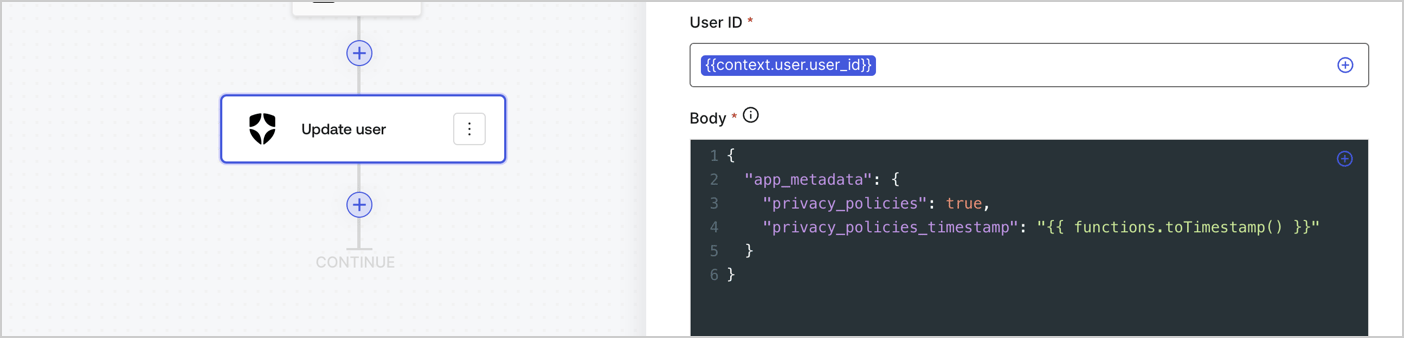
Add an Auth0 Update user action to the flow by following these steps:

1. Select the **Flow** **Update app\_metadata** > **Edit flow** to open the Flow editor in a new tab.
2. Below the StartAction, select the **+** icon to add an **Update user** action. Complete the fields below, then select **Save** to continue.

   * **Connection**: Select from the dropdown the Vault connection to your M2M application.

   * **User ID**: Enter `{{context.user.user_id}}`.

   * **Body**: Copy and paste the following code to update the app\_metadata with the privacy\_policies and privacy\_policies\_timestamp properties.

     ```text lines theme={null}
     {
       "app_metadata": {
         "privacy_policies": true,
         "privacy_policies_timestamp": "{{ functions.toTimestamp() }}"
       }
     }
     ```

   * Select **Save**.
3. Select **Publish** to save.
<Frame>
  <img src="https://mintcdn.com/docs-staging-feat-docs-5554-self-service/EQDr98h4HotcVwTy/docs/images/cdy7uua7fh8z/CvMNIwWrOUwaFW4X3G28p/1fb70ae57a20749d9ffaaba8dc0b7e26/update-user-privacy.png?fit=max&auto=format&n=EQDr98h4HotcVwTy&q=85&s=34ee29fd58f4d06031d56338ea2b5484" alt="Dashboard > Actions > Forms > User case privacy policy code" data-og-width="1404" width="1404" data-og-height="338" height="338" data-path="docs/images/cdy7uua7fh8z/CvMNIwWrOUwaFW4X3G28p/1fb70ae57a20749d9ffaaba8dc0b7e26/update-user-privacy.png" data-optimize="true" data-opv="3" srcset="https://mintcdn.com/docs-staging-feat-docs-5554-self-service/EQDr98h4HotcVwTy/docs/images/cdy7uua7fh8z/CvMNIwWrOUwaFW4X3G28p/1fb70ae57a20749d9ffaaba8dc0b7e26/update-user-privacy.png?w=280&fit=max&auto=format&n=EQDr98h4HotcVwTy&q=85&s=2b24be986cd8640677d76378fa7d3545 280w, https://mintcdn.com/docs-staging-feat-docs-5554-self-service/EQDr98h4HotcVwTy/docs/images/cdy7uua7fh8z/CvMNIwWrOUwaFW4X3G28p/1fb70ae57a20749d9ffaaba8dc0b7e26/update-user-privacy.png?w=560&fit=max&auto=format&n=EQDr98h4HotcVwTy&q=85&s=1e417edf26ab856558fcb5702790b7b1 560w, https://mintcdn.com/docs-staging-feat-docs-5554-self-service/EQDr98h4HotcVwTy/docs/images/cdy7uua7fh8z/CvMNIwWrOUwaFW4X3G28p/1fb70ae57a20749d9ffaaba8dc0b7e26/update-user-privacy.png?w=840&fit=max&auto=format&n=EQDr98h4HotcVwTy&q=85&s=c7f87ddce4e9ddfae5abed41c778840d 840w, https://mintcdn.com/docs-staging-feat-docs-5554-self-service/EQDr98h4HotcVwTy/docs/images/cdy7uua7fh8z/CvMNIwWrOUwaFW4X3G28p/1fb70ae57a20749d9ffaaba8dc0b7e26/update-user-privacy.png?w=1100&fit=max&auto=format&n=EQDr98h4HotcVwTy&q=85&s=503ff1413da194c816cd5dc7fe040d32 1100w, https://mintcdn.com/docs-staging-feat-docs-5554-self-service/EQDr98h4HotcVwTy/docs/images/cdy7uua7fh8z/CvMNIwWrOUwaFW4X3G28p/1fb70ae57a20749d9ffaaba8dc0b7e26/update-user-privacy.png?w=1650&fit=max&auto=format&n=EQDr98h4HotcVwTy&q=85&s=7722c93bf7663971bcb2240fb06859a2 1650w, https://mintcdn.com/docs-staging-feat-docs-5554-self-service/EQDr98h4HotcVwTy/docs/images/cdy7uua7fh8z/CvMNIwWrOUwaFW4X3G28p/1fb70ae57a20749d9ffaaba8dc0b7e26/update-user-privacy.png?w=2500&fit=max&auto=format&n=EQDr98h4HotcVwTy&q=85&s=aa18d8855d6b1a242e8cb2e3e395e774 2500w" />
</Frame>

<Callout icon="file-lines" color="#0EA5E9" iconType="regular">
  The flow **Update app\_metadata** adds a `privacy_policies true` value to the app`_metadata` object and also generates a timestamp with a [helper function.](/docs/customize/forms/variables)
</Callout>

## Retrieve the form render code

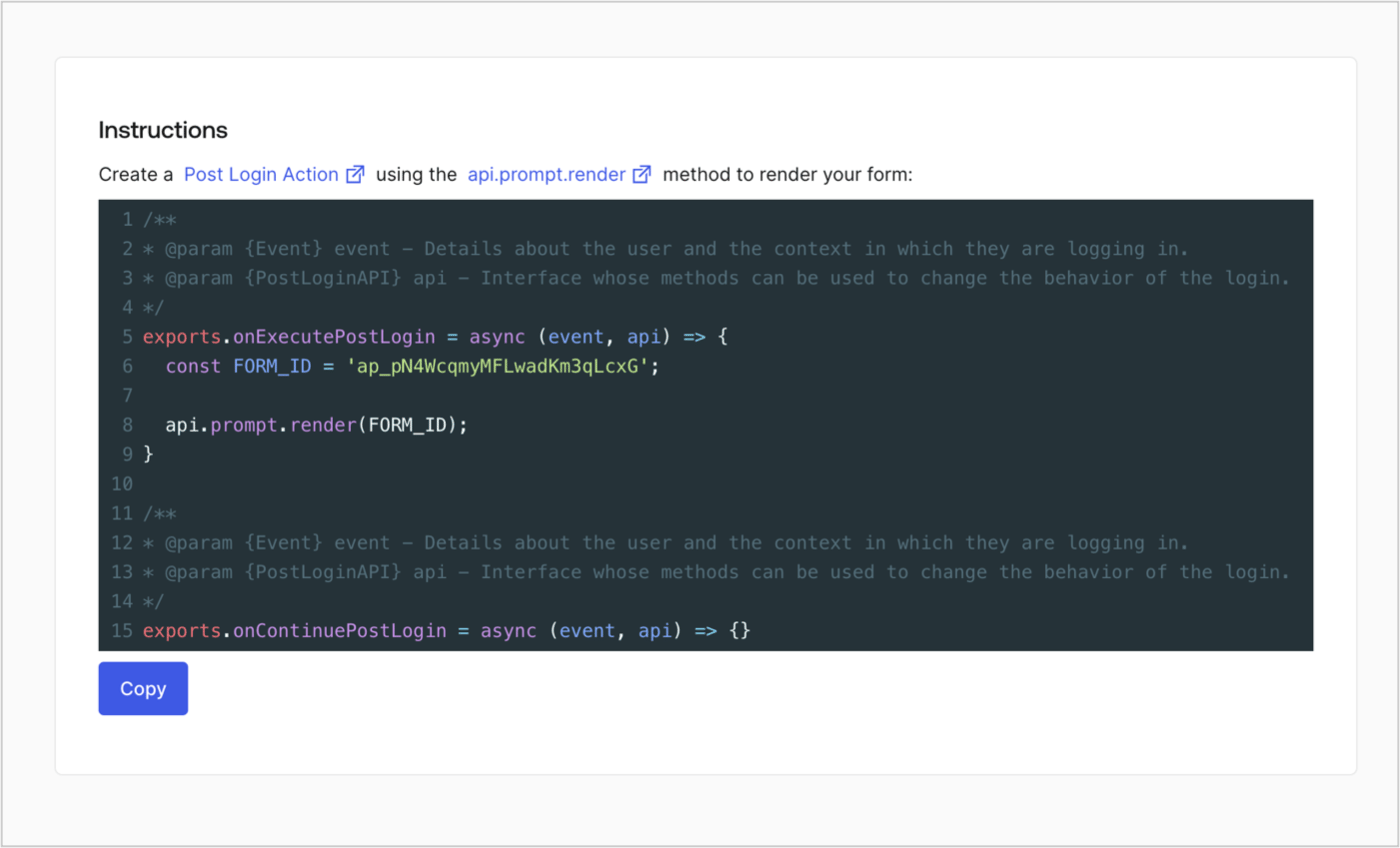
Retrieve your form render code to visually render the form with a custom Post Login Action by following these steps:

* From the Form editor, select **`<> Render`**.
* Select **Copy**.
<Frame>
  <img src="https://mintcdn.com/docs-staging-feat-docs-5554-self-service/Pf7iYJKBwyOcs1bB/docs/images/cdy7uua7fh8z/2EIUzc539sq9lwoTKbjoJv/496a864c0fc44a782c9cadca119dbfb0/embed.png?fit=max&auto=format&n=Pf7iYJKBwyOcs1bB&q=85&s=ed9da6d6c036d428fd2d08188e80c0ea" alt="Dashboard > Actions > Forms > Form > Embed" data-og-width="1400" width="1400" data-og-height="848" height="848" data-path="docs/images/cdy7uua7fh8z/2EIUzc539sq9lwoTKbjoJv/496a864c0fc44a782c9cadca119dbfb0/embed.png" data-optimize="true" data-opv="3" srcset="https://mintcdn.com/docs-staging-feat-docs-5554-self-service/Pf7iYJKBwyOcs1bB/docs/images/cdy7uua7fh8z/2EIUzc539sq9lwoTKbjoJv/496a864c0fc44a782c9cadca119dbfb0/embed.png?w=280&fit=max&auto=format&n=Pf7iYJKBwyOcs1bB&q=85&s=76451d038a0a3a1211702d8c21609946 280w, https://mintcdn.com/docs-staging-feat-docs-5554-self-service/Pf7iYJKBwyOcs1bB/docs/images/cdy7uua7fh8z/2EIUzc539sq9lwoTKbjoJv/496a864c0fc44a782c9cadca119dbfb0/embed.png?w=560&fit=max&auto=format&n=Pf7iYJKBwyOcs1bB&q=85&s=85e2f14ea73b86c6a38698d63d80f40d 560w, https://mintcdn.com/docs-staging-feat-docs-5554-self-service/Pf7iYJKBwyOcs1bB/docs/images/cdy7uua7fh8z/2EIUzc539sq9lwoTKbjoJv/496a864c0fc44a782c9cadca119dbfb0/embed.png?w=840&fit=max&auto=format&n=Pf7iYJKBwyOcs1bB&q=85&s=a0f349c3c6b8f194ac58ade18ba8188a 840w, https://mintcdn.com/docs-staging-feat-docs-5554-self-service/Pf7iYJKBwyOcs1bB/docs/images/cdy7uua7fh8z/2EIUzc539sq9lwoTKbjoJv/496a864c0fc44a782c9cadca119dbfb0/embed.png?w=1100&fit=max&auto=format&n=Pf7iYJKBwyOcs1bB&q=85&s=6c8b3312206db4aa906dd035c35c2500 1100w, https://mintcdn.com/docs-staging-feat-docs-5554-self-service/Pf7iYJKBwyOcs1bB/docs/images/cdy7uua7fh8z/2EIUzc539sq9lwoTKbjoJv/496a864c0fc44a782c9cadca119dbfb0/embed.png?w=1650&fit=max&auto=format&n=Pf7iYJKBwyOcs1bB&q=85&s=cbfde74fbc360b1243d0ae042fc5266b 1650w, https://mintcdn.com/docs-staging-feat-docs-5554-self-service/Pf7iYJKBwyOcs1bB/docs/images/cdy7uua7fh8z/2EIUzc539sq9lwoTKbjoJv/496a864c0fc44a782c9cadca119dbfb0/embed.png?w=2500&fit=max&auto=format&n=Pf7iYJKBwyOcs1bB&q=85&s=c8007fa3f79fd69670ed856ffb9d7649 2500w" />
</Frame>

## Create a Post Login Action

Create a post-login Action to render your form by following these steps:

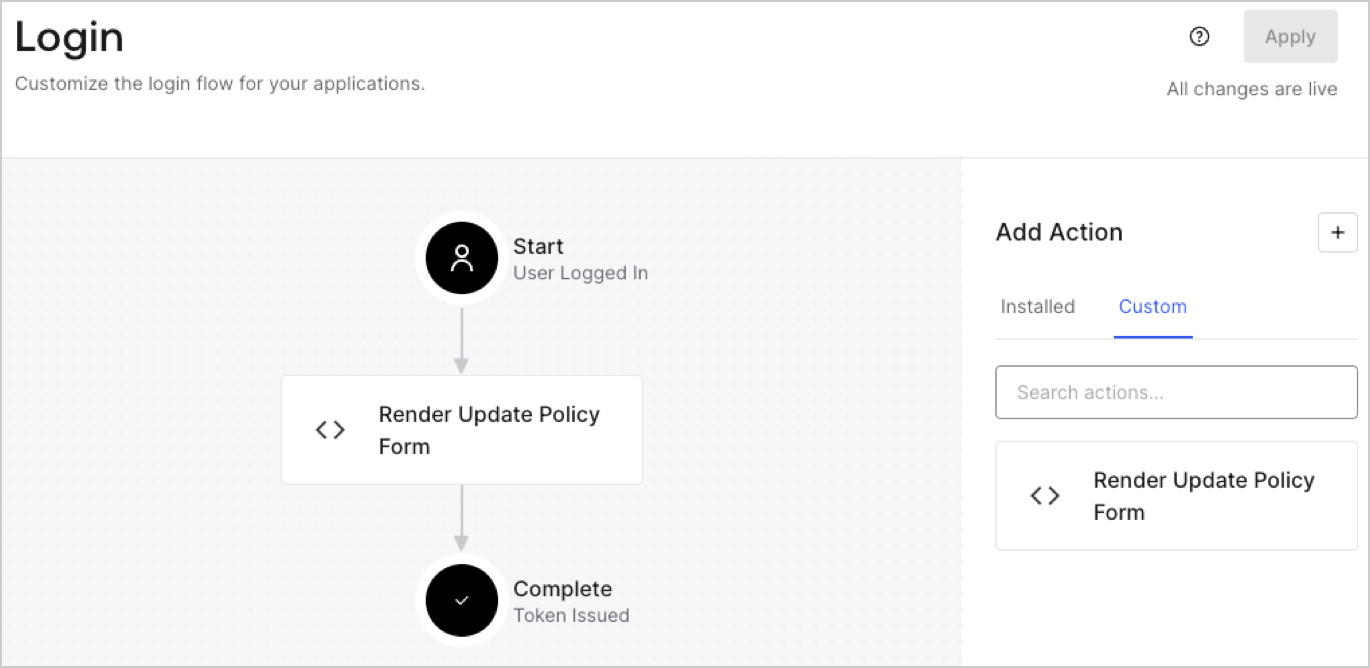
1. Navigate to **Auth0 Dashboard > Actions > Flows > Login.**
2. Select the **+** icon and Select **Build from scratch**:

   * **Name**: Enter `Render Update Policy Form`.
   * **Trigger**: Select `Login / Post Login`.
   * **Runtime**: Select the recommended version.
3. Select **Create**.

To configure the post-login Action:

1. Delete the existing code from the Code editor.
2. Paste the form render code into the Code editor.
3. Edit the code to define the conditional logic that will render the form.

   ```javascript lines theme={null}
   /**
   * @param {Event} event - Details about the user and the context in which they are logging in.
   * @param {PostLoginAPI} api - Interface whose methods can be used to change the behavior of the login.
   */
   exports.onExecutePostLogin = async (event, api) => {
     const FORM_ID = 'REPLACE_WITH_YOUR_FORM_ID';

     if (event.user.app_metadata.privacy_policies !== true) {
       api.prompt.render(FORM_ID);
     }
   }

   exports.onContinuePostLogin = async (event, api) => { }
   ```

   <Callout icon="file-lines" color="#0EA5E9" iconType="regular">
     The example code above will render the form when a user is missing the app metadata `privacy_policies` property.
   </Callout>
4. Select **Deploy.**
5. Drag and Drop the **Render Update Policy Form** Action to the **Login** flow.
   <Frame>
     <img src="https://mintcdn.com/docs-staging-feat-docs-5554-self-service/dsL9Dvq00VR_dt9D/docs/images/cdy7uua7fh8z/5TOwDgevZsBqd7yZynUYWU/41ca909dc3007aed4f40ff794a05efa5/postlogin.png?fit=max&auto=format&n=dsL9Dvq00VR_dt9D&q=85&s=1712e6d57f240f5391d137534e09bca0" alt="Dashboard > Forms > Use Case > Render update policy form login action" data-og-width="1370" width="1370" data-og-height="668" height="668" data-path="docs/images/cdy7uua7fh8z/5TOwDgevZsBqd7yZynUYWU/41ca909dc3007aed4f40ff794a05efa5/postlogin.png" data-optimize="true" data-opv="3" srcset="https://mintcdn.com/docs-staging-feat-docs-5554-self-service/dsL9Dvq00VR_dt9D/docs/images/cdy7uua7fh8z/5TOwDgevZsBqd7yZynUYWU/41ca909dc3007aed4f40ff794a05efa5/postlogin.png?w=280&fit=max&auto=format&n=dsL9Dvq00VR_dt9D&q=85&s=e848b09017ebc822f1599dc29132cd16 280w, https://mintcdn.com/docs-staging-feat-docs-5554-self-service/dsL9Dvq00VR_dt9D/docs/images/cdy7uua7fh8z/5TOwDgevZsBqd7yZynUYWU/41ca909dc3007aed4f40ff794a05efa5/postlogin.png?w=560&fit=max&auto=format&n=dsL9Dvq00VR_dt9D&q=85&s=3e8ff6b8c15871caa7eecf449215cf69 560w, https://mintcdn.com/docs-staging-feat-docs-5554-self-service/dsL9Dvq00VR_dt9D/docs/images/cdy7uua7fh8z/5TOwDgevZsBqd7yZynUYWU/41ca909dc3007aed4f40ff794a05efa5/postlogin.png?w=840&fit=max&auto=format&n=dsL9Dvq00VR_dt9D&q=85&s=2d10dfbdbc9ecaa837fe45ee2d5f419b 840w, https://mintcdn.com/docs-staging-feat-docs-5554-self-service/dsL9Dvq00VR_dt9D/docs/images/cdy7uua7fh8z/5TOwDgevZsBqd7yZynUYWU/41ca909dc3007aed4f40ff794a05efa5/postlogin.png?w=1100&fit=max&auto=format&n=dsL9Dvq00VR_dt9D&q=85&s=9f81bd425315148884ad1124906de245 1100w, https://mintcdn.com/docs-staging-feat-docs-5554-self-service/dsL9Dvq00VR_dt9D/docs/images/cdy7uua7fh8z/5TOwDgevZsBqd7yZynUYWU/41ca909dc3007aed4f40ff794a05efa5/postlogin.png?w=1650&fit=max&auto=format&n=dsL9Dvq00VR_dt9D&q=85&s=832b46742300c038427398a8016ce501 1650w, https://mintcdn.com/docs-staging-feat-docs-5554-self-service/dsL9Dvq00VR_dt9D/docs/images/cdy7uua7fh8z/5TOwDgevZsBqd7yZynUYWU/41ca909dc3007aed4f40ff794a05efa5/postlogin.png?w=2500&fit=max&auto=format&n=dsL9Dvq00VR_dt9D&q=85&s=6759295121723cea9158619bd0b817cf 2500w" />
   </Frame>
6. Select **Apply.**

### Test implementation

Test the implementation by following these steps:

1. Log in with an existing user whose app`_metadata` attribute `privacy_policies` does not have a value.
2. The post-login Action in the Login flow will render the form and prompt for acceptance.
3. Select **Auth0 Dashboard > User Management > Users,** locate the user and verify that the `app_metadata` attribute `privacy_policies` contains a `true` value and a timestamp.
