> ## Documentation Index
> Fetch the complete documentation index at: https://docs-staging-feat-docs-5554-self-service.mintlify.site/llms.txt
> Use this file to discover all available pages before exploring further.

> Learn how to configure a progressive profile form using Forms for Actions

# Use Cases: Configure a progressive profile form using Forms

<Card title="Before you start">
  1. Create a [Machine-to-Machine Application](/docs/get-started/auth0-overview/create-applications/machine-to-machine-apps) with the following scopes enabled:

  * `read:users`
  * `update:users`
  * `create:users`
  * `read:users_app_metadata`
  * `update:users_app_metadata`
  * `create:users_app_metadata`

  2. Add a [Vault connection](/docs/customize/forms/vault) using the M2M application credentials.
</Card>

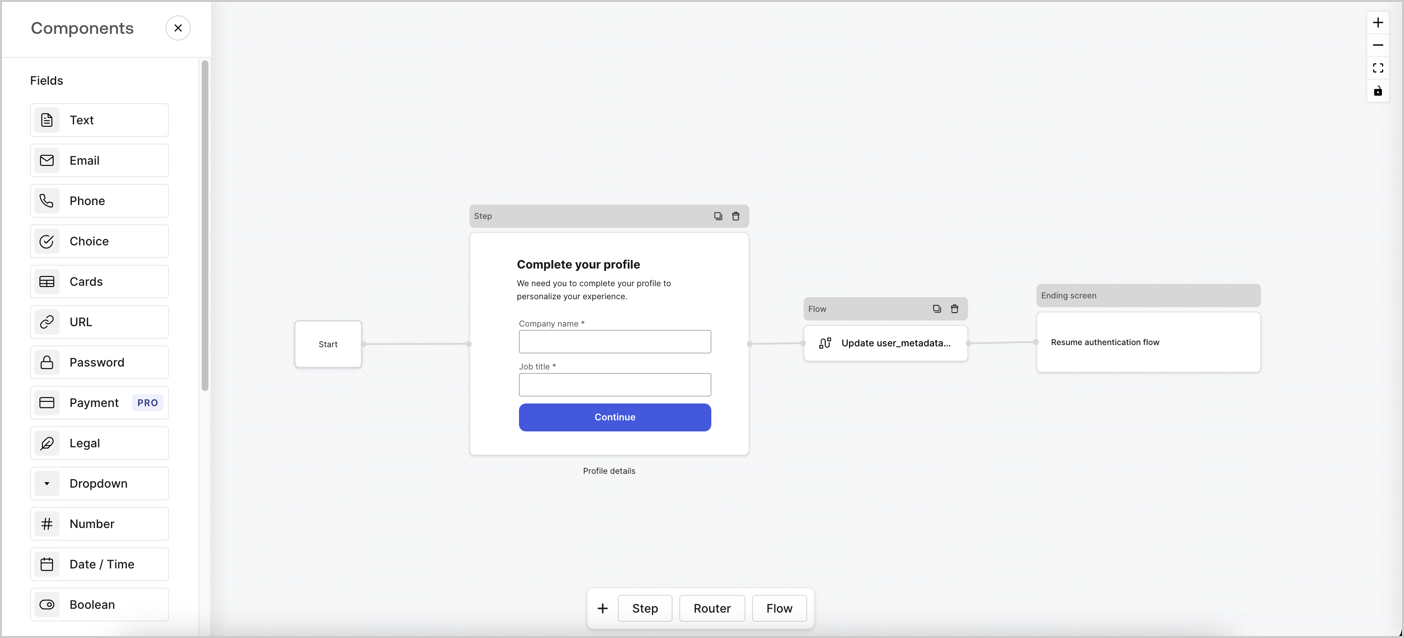
Forms for Actions allows you to create progressive profiling flows to decide when to prompt users to collect missing information, such as company name and job title, and store them as `user_metadata` attributes.
<Frame>
  <img src="https://mintcdn.com/docs-staging-feat-docs-5554-self-service/X_-WGuJLySajjRXU/docs/images/cdy7uua7fh8z/xUx9YmnHvnAqL19JvNtNP/60dae88f893d4ebe8e3523421e960596/Progressive-profle-overview.png?fit=max&auto=format&n=X_-WGuJLySajjRXU&q=85&s=2ab75a119415d0bd225137dea0ff7089" alt="Dashboard > Actions > Forms > Form" data-og-width="1404" width="1404" data-og-height="638" height="638" data-path="docs/images/cdy7uua7fh8z/xUx9YmnHvnAqL19JvNtNP/60dae88f893d4ebe8e3523421e960596/Progressive-profle-overview.png" data-optimize="true" data-opv="3" srcset="https://mintcdn.com/docs-staging-feat-docs-5554-self-service/X_-WGuJLySajjRXU/docs/images/cdy7uua7fh8z/xUx9YmnHvnAqL19JvNtNP/60dae88f893d4ebe8e3523421e960596/Progressive-profle-overview.png?w=280&fit=max&auto=format&n=X_-WGuJLySajjRXU&q=85&s=b03b09b22fbda75e68050c695cc4225e 280w, https://mintcdn.com/docs-staging-feat-docs-5554-self-service/X_-WGuJLySajjRXU/docs/images/cdy7uua7fh8z/xUx9YmnHvnAqL19JvNtNP/60dae88f893d4ebe8e3523421e960596/Progressive-profle-overview.png?w=560&fit=max&auto=format&n=X_-WGuJLySajjRXU&q=85&s=7cd001136011447a63697bd66dfc7082 560w, https://mintcdn.com/docs-staging-feat-docs-5554-self-service/X_-WGuJLySajjRXU/docs/images/cdy7uua7fh8z/xUx9YmnHvnAqL19JvNtNP/60dae88f893d4ebe8e3523421e960596/Progressive-profle-overview.png?w=840&fit=max&auto=format&n=X_-WGuJLySajjRXU&q=85&s=5cff2efb85ec193de2d76bcbad051d03 840w, https://mintcdn.com/docs-staging-feat-docs-5554-self-service/X_-WGuJLySajjRXU/docs/images/cdy7uua7fh8z/xUx9YmnHvnAqL19JvNtNP/60dae88f893d4ebe8e3523421e960596/Progressive-profle-overview.png?w=1100&fit=max&auto=format&n=X_-WGuJLySajjRXU&q=85&s=15abf4c587e676683a3095a155e7c392 1100w, https://mintcdn.com/docs-staging-feat-docs-5554-self-service/X_-WGuJLySajjRXU/docs/images/cdy7uua7fh8z/xUx9YmnHvnAqL19JvNtNP/60dae88f893d4ebe8e3523421e960596/Progressive-profle-overview.png?w=1650&fit=max&auto=format&n=X_-WGuJLySajjRXU&q=85&s=bf8f0bfe0193d5dd2c7cc4778725db47 1650w, https://mintcdn.com/docs-staging-feat-docs-5554-self-service/X_-WGuJLySajjRXU/docs/images/cdy7uua7fh8z/xUx9YmnHvnAqL19JvNtNP/60dae88f893d4ebe8e3523421e960596/Progressive-profle-overview.png?w=2500&fit=max&auto=format&n=X_-WGuJLySajjRXU&q=85&s=c6aec48735767517184b9638a17ff46c 2500w" />
</Frame>

The sections below outline how you can create a progressive profile form using nodes and flows, along with steps for adding your form to a [Post Login Action](/docs/customize/actions/explore-triggers/signup-and-login-triggers/login-trigger).

## Create a form from scratch

Follow these steps to create a form to gather information:

1. Open the Form editor by selecting **Auth0 Dashboard > Actions > Forms.**
2. Select **Create Form** > **Start from scratch**.

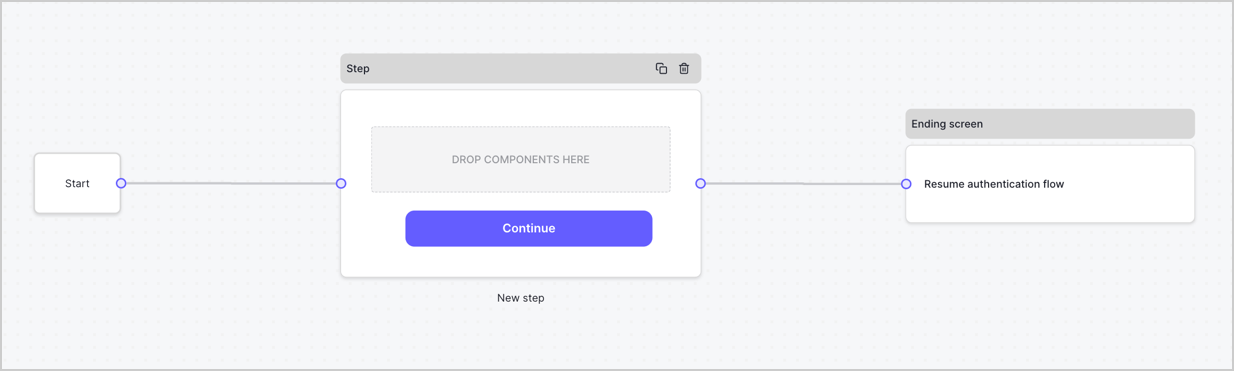
By default, a new form contains a Start node, a Step node, and an Ending screen node.
<Frame>
  <img src="https://mintcdn.com/docs-staging-feat-docs-5554-self-service/2e84f1JHhK_1FkcJ/docs/images/cdy7uua7fh8z/2TZ9jSjgEcARFpULI6hz4R/a4319a1bd482f2ee5cc23100fdb2f42c/New-form-Forms-for-action-use-case.png?fit=max&auto=format&n=2e84f1JHhK_1FkcJ&q=85&s=4c312b824721d801e17aac552da9898e" alt="Dashboard > Forms > Use Cases > Form" data-og-width="1234" width="1234" data-og-height="371" height="371" data-path="docs/images/cdy7uua7fh8z/2TZ9jSjgEcARFpULI6hz4R/a4319a1bd482f2ee5cc23100fdb2f42c/New-form-Forms-for-action-use-case.png" data-optimize="true" data-opv="3" srcset="https://mintcdn.com/docs-staging-feat-docs-5554-self-service/2e84f1JHhK_1FkcJ/docs/images/cdy7uua7fh8z/2TZ9jSjgEcARFpULI6hz4R/a4319a1bd482f2ee5cc23100fdb2f42c/New-form-Forms-for-action-use-case.png?w=280&fit=max&auto=format&n=2e84f1JHhK_1FkcJ&q=85&s=073a4fe161e165e1c3edec53757f7c2b 280w, https://mintcdn.com/docs-staging-feat-docs-5554-self-service/2e84f1JHhK_1FkcJ/docs/images/cdy7uua7fh8z/2TZ9jSjgEcARFpULI6hz4R/a4319a1bd482f2ee5cc23100fdb2f42c/New-form-Forms-for-action-use-case.png?w=560&fit=max&auto=format&n=2e84f1JHhK_1FkcJ&q=85&s=4b8c56e8afc04782055baf64a130ce73 560w, https://mintcdn.com/docs-staging-feat-docs-5554-self-service/2e84f1JHhK_1FkcJ/docs/images/cdy7uua7fh8z/2TZ9jSjgEcARFpULI6hz4R/a4319a1bd482f2ee5cc23100fdb2f42c/New-form-Forms-for-action-use-case.png?w=840&fit=max&auto=format&n=2e84f1JHhK_1FkcJ&q=85&s=2f3c2310c6629c0d22a93d80546026d3 840w, https://mintcdn.com/docs-staging-feat-docs-5554-self-service/2e84f1JHhK_1FkcJ/docs/images/cdy7uua7fh8z/2TZ9jSjgEcARFpULI6hz4R/a4319a1bd482f2ee5cc23100fdb2f42c/New-form-Forms-for-action-use-case.png?w=1100&fit=max&auto=format&n=2e84f1JHhK_1FkcJ&q=85&s=f228cbc80198cb7262a1c14e39eb37ed 1100w, https://mintcdn.com/docs-staging-feat-docs-5554-self-service/2e84f1JHhK_1FkcJ/docs/images/cdy7uua7fh8z/2TZ9jSjgEcARFpULI6hz4R/a4319a1bd482f2ee5cc23100fdb2f42c/New-form-Forms-for-action-use-case.png?w=1650&fit=max&auto=format&n=2e84f1JHhK_1FkcJ&q=85&s=e3351ef07510dbbf99497c0d1a7fe1fa 1650w, https://mintcdn.com/docs-staging-feat-docs-5554-self-service/2e84f1JHhK_1FkcJ/docs/images/cdy7uua7fh8z/2TZ9jSjgEcARFpULI6hz4R/a4319a1bd482f2ee5cc23100fdb2f42c/New-form-Forms-for-action-use-case.png?w=2500&fit=max&auto=format&n=2e84f1JHhK_1FkcJ&q=85&s=33acd9e64287c0b5d43d1ba6bac52f41 2500w" />
</Frame>

### Configure the Step node

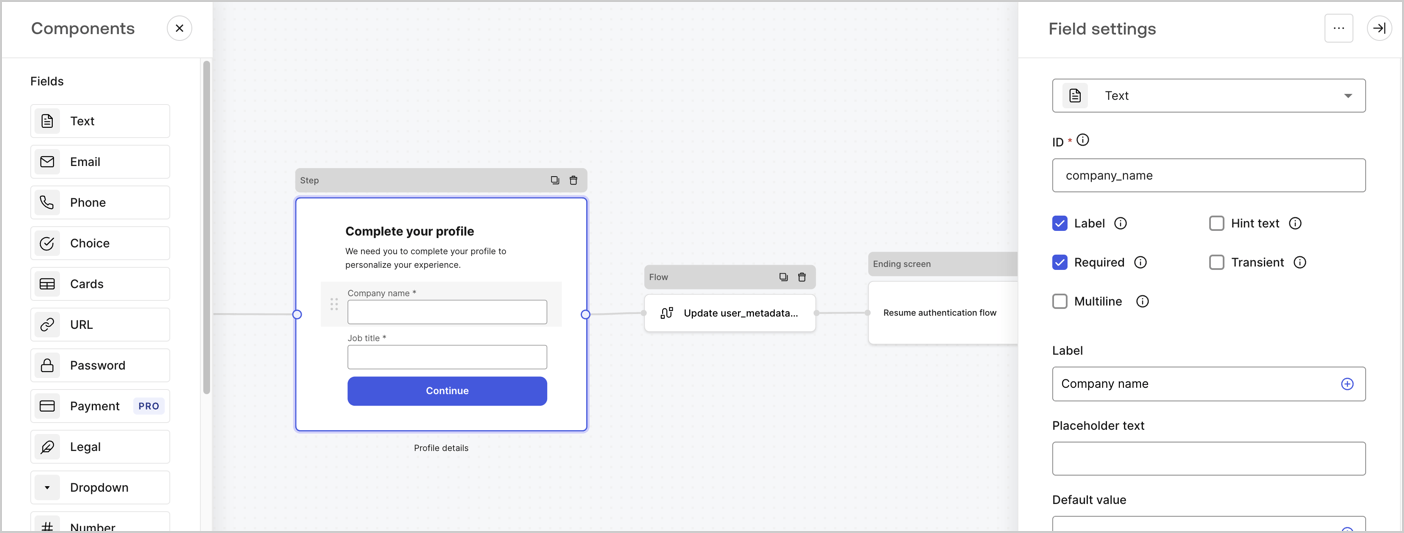
The Step node is the graphical interface visible to users. Add [Fields](/docs/customize/forms/nodes-and-components) to the Step node to collect the user's company name and job title values by following these steps:

1. Drag a **Rich text** field from the **Components menu** into the **Step** node.

   * **Rich text**: Enter a custom message.

     * **Example**: `Complete your profile! We need you to complete your profile to personalize your experience.`
   * Select **Save**.
2. Drag a **Text** field into the **Step** node.

   * **ID**: Enter `company_name`.
   * **Label**: Enable the checkbox.
   * **Label**: Enter `Company name`.
   * **Required**: Enable the checkbox.
   * Select **Save**.
3. Drag a **Text** field into the **Step** node.

   1. **ID**: Enter `job_title`.
   2. **Label**: Enter `Job title`.
   3. **Label**: Enable the checkbox.
   4. **Required**: Enable the checkbox.
   5. Select **Save**.
4. Select **Publish** to save.
<Frame>
  <img src="https://mintcdn.com/docs-staging-feat-docs-5554-self-service/d9MneORhdBUj_Liz/docs/images/cdy7uua7fh8z/6H1lRzwKyYioQyQJ9MtIoM/aa248e92fc028a68a5b92ff361a11644/progressive-profile-step.png?fit=max&auto=format&n=d9MneORhdBUj_Liz&q=85&s=3faafd49d0c6a44fb682f3f6afebaf72" alt="Dashboard > Actions > Forms > Form > Step node" data-og-width="1404" width="1404" data-og-height="533" height="533" data-path="docs/images/cdy7uua7fh8z/6H1lRzwKyYioQyQJ9MtIoM/aa248e92fc028a68a5b92ff361a11644/progressive-profile-step.png" data-optimize="true" data-opv="3" srcset="https://mintcdn.com/docs-staging-feat-docs-5554-self-service/d9MneORhdBUj_Liz/docs/images/cdy7uua7fh8z/6H1lRzwKyYioQyQJ9MtIoM/aa248e92fc028a68a5b92ff361a11644/progressive-profile-step.png?w=280&fit=max&auto=format&n=d9MneORhdBUj_Liz&q=85&s=ceee78986aa7ea73905b275cf1a3b92c 280w, https://mintcdn.com/docs-staging-feat-docs-5554-self-service/d9MneORhdBUj_Liz/docs/images/cdy7uua7fh8z/6H1lRzwKyYioQyQJ9MtIoM/aa248e92fc028a68a5b92ff361a11644/progressive-profile-step.png?w=560&fit=max&auto=format&n=d9MneORhdBUj_Liz&q=85&s=8e5f0fb40ad660888d5880d65054594b 560w, https://mintcdn.com/docs-staging-feat-docs-5554-self-service/d9MneORhdBUj_Liz/docs/images/cdy7uua7fh8z/6H1lRzwKyYioQyQJ9MtIoM/aa248e92fc028a68a5b92ff361a11644/progressive-profile-step.png?w=840&fit=max&auto=format&n=d9MneORhdBUj_Liz&q=85&s=f3853bfe4ee506f7aab73d5f73a3778e 840w, https://mintcdn.com/docs-staging-feat-docs-5554-self-service/d9MneORhdBUj_Liz/docs/images/cdy7uua7fh8z/6H1lRzwKyYioQyQJ9MtIoM/aa248e92fc028a68a5b92ff361a11644/progressive-profile-step.png?w=1100&fit=max&auto=format&n=d9MneORhdBUj_Liz&q=85&s=3744aca8e8764e266df02bafca026b85 1100w, https://mintcdn.com/docs-staging-feat-docs-5554-self-service/d9MneORhdBUj_Liz/docs/images/cdy7uua7fh8z/6H1lRzwKyYioQyQJ9MtIoM/aa248e92fc028a68a5b92ff361a11644/progressive-profile-step.png?w=1650&fit=max&auto=format&n=d9MneORhdBUj_Liz&q=85&s=e7f91741d5e481b43452e92281e5f965 1650w, https://mintcdn.com/docs-staging-feat-docs-5554-self-service/d9MneORhdBUj_Liz/docs/images/cdy7uua7fh8z/6H1lRzwKyYioQyQJ9MtIoM/aa248e92fc028a68a5b92ff361a11644/progressive-profile-step.png?w=2500&fit=max&auto=format&n=d9MneORhdBUj_Liz&q=85&s=ebbd6e723ce81a9d475b84ddcd8ee4f4 2500w" />
</Frame>

### Configure the flow node

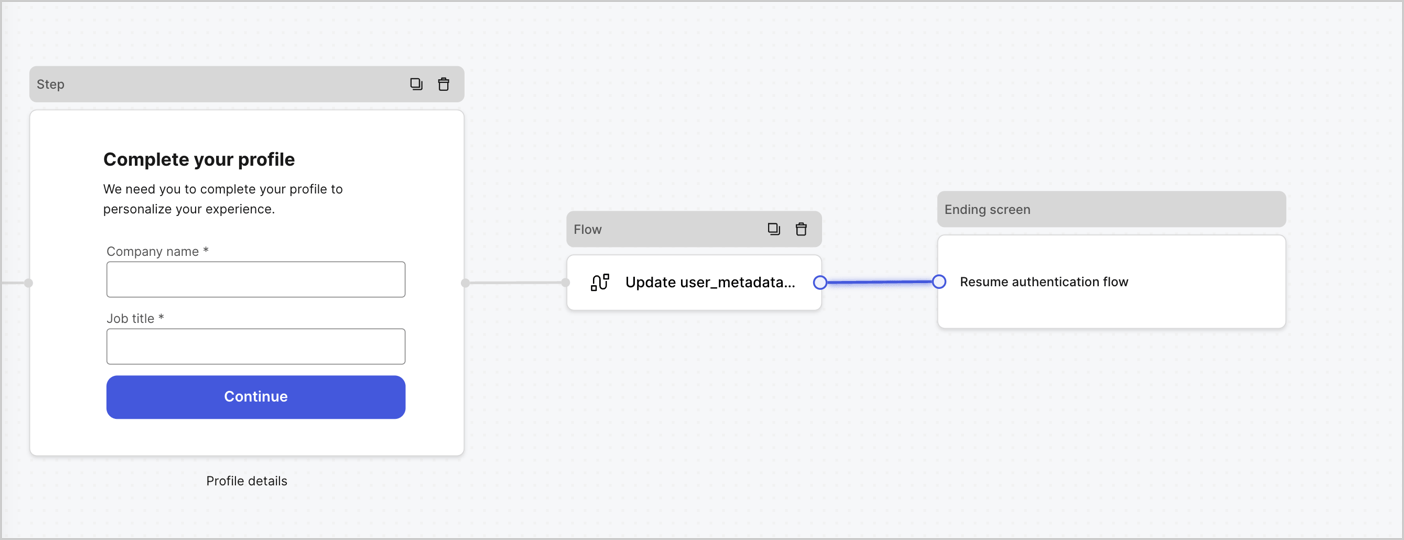
Add a **Flow** node after the **Step** node to update the `user_metadata` and resume the authentication flow by following these steps:

1. Select **Flow** from the bottom of the Form editor.
2. Remove the existing link between the **Step** and **Ending Screen** nodes.
3. Select the new **Flow** > **Click to add a flow** > **Create a new flow.**

   * Enter `Update user_metadata` in the **Name** field.
   * Select **Create**.
   * Select **Save**.
4. Link the **Flow** node to the **Step** and **Ending Screen** nodes as pictured below.
5. Select **Publish** to save.
<Frame>
  <img src="https://mintcdn.com/docs-staging-feat-docs-5554-self-service/0SQlyFTQ1TFVa8wB/docs/images/cdy7uua7fh8z/5C91DaWn4LGtJT9BF87ssu/095171d0c452a287c44bfde12fd6d13f/link-nodes.png?fit=max&auto=format&n=0SQlyFTQ1TFVa8wB&q=85&s=45cd80f29a6ad14ade4f8c031839d98d" alt="Dashboard > Actions > Forms > Form" data-og-width="1404" width="1404" data-og-height="540" height="540" data-path="docs/images/cdy7uua7fh8z/5C91DaWn4LGtJT9BF87ssu/095171d0c452a287c44bfde12fd6d13f/link-nodes.png" data-optimize="true" data-opv="3" srcset="https://mintcdn.com/docs-staging-feat-docs-5554-self-service/0SQlyFTQ1TFVa8wB/docs/images/cdy7uua7fh8z/5C91DaWn4LGtJT9BF87ssu/095171d0c452a287c44bfde12fd6d13f/link-nodes.png?w=280&fit=max&auto=format&n=0SQlyFTQ1TFVa8wB&q=85&s=7678cadb857a6c6d453e62d0a04ecbb5 280w, https://mintcdn.com/docs-staging-feat-docs-5554-self-service/0SQlyFTQ1TFVa8wB/docs/images/cdy7uua7fh8z/5C91DaWn4LGtJT9BF87ssu/095171d0c452a287c44bfde12fd6d13f/link-nodes.png?w=560&fit=max&auto=format&n=0SQlyFTQ1TFVa8wB&q=85&s=28b1ed139f2d8a67c3c22db00cd3e76a 560w, https://mintcdn.com/docs-staging-feat-docs-5554-self-service/0SQlyFTQ1TFVa8wB/docs/images/cdy7uua7fh8z/5C91DaWn4LGtJT9BF87ssu/095171d0c452a287c44bfde12fd6d13f/link-nodes.png?w=840&fit=max&auto=format&n=0SQlyFTQ1TFVa8wB&q=85&s=6ba3911aed5fb6e978d184dba50f76af 840w, https://mintcdn.com/docs-staging-feat-docs-5554-self-service/0SQlyFTQ1TFVa8wB/docs/images/cdy7uua7fh8z/5C91DaWn4LGtJT9BF87ssu/095171d0c452a287c44bfde12fd6d13f/link-nodes.png?w=1100&fit=max&auto=format&n=0SQlyFTQ1TFVa8wB&q=85&s=b2938e0835ad343def48c70fc4a51bc5 1100w, https://mintcdn.com/docs-staging-feat-docs-5554-self-service/0SQlyFTQ1TFVa8wB/docs/images/cdy7uua7fh8z/5C91DaWn4LGtJT9BF87ssu/095171d0c452a287c44bfde12fd6d13f/link-nodes.png?w=1650&fit=max&auto=format&n=0SQlyFTQ1TFVa8wB&q=85&s=87901250947c18bc23cc6ff708a64701 1650w, https://mintcdn.com/docs-staging-feat-docs-5554-self-service/0SQlyFTQ1TFVa8wB/docs/images/cdy7uua7fh8z/5C91DaWn4LGtJT9BF87ssu/095171d0c452a287c44bfde12fd6d13f/link-nodes.png?w=2500&fit=max&auto=format&n=0SQlyFTQ1TFVa8wB&q=85&s=4334da52ac47713fb3e2103356ef106b 2500w" />
</Frame>

Add an Auth0 Update user action to the flow by following these steps:

1. Select the **Update user\_metadata** flow, then select the **Edit Flow** to open the Flow editor in a new tab.
2. Below the **Start** action, select the **+** icon to add an **Update user** action. Complete the fields below, then select **Save** to continue.

   * **Connection**: Select from the dropdown the Vault connection to your M2M application.

   * **User ID**: Enter `{{context.user.user_id}}`.

   * **Body**: Copy and paste the following code to update the user\_metadata with `job_title` and `company_name` properties.

     ```json lines theme={null}
     {
        "user_metadata": {
           "job_title": "{{fields.job_title}}",
           "company_name": "{{fields.company_name}}"
        }
     }
     ```

   * Select **Save**.
3. Select **Publish** to save.

<Frame>
  <img src="https://mintcdn.com/docs-staging-feat-docs-5554-self-service/dsL9Dvq00VR_dt9D/docs/images/cdy7uua7fh8z/65Jx4W5oIZJyyvA8z4HqIx/0661b1a8ca6361c54fc4fef07ba59f0b/update-user.png?fit=max&auto=format&n=dsL9Dvq00VR_dt9D&q=85&s=e0bb8d9056feae2794e54aead6e637cf" alt="Dashboard > Actions > Forms > Flows" data-og-width="1404" width="1404" data-og-height="244" height="244" data-path="docs/images/cdy7uua7fh8z/65Jx4W5oIZJyyvA8z4HqIx/0661b1a8ca6361c54fc4fef07ba59f0b/update-user.png" data-optimize="true" data-opv="3" srcset="https://mintcdn.com/docs-staging-feat-docs-5554-self-service/dsL9Dvq00VR_dt9D/docs/images/cdy7uua7fh8z/65Jx4W5oIZJyyvA8z4HqIx/0661b1a8ca6361c54fc4fef07ba59f0b/update-user.png?w=280&fit=max&auto=format&n=dsL9Dvq00VR_dt9D&q=85&s=9d8c38201a899cce8f1832200f07faab 280w, https://mintcdn.com/docs-staging-feat-docs-5554-self-service/dsL9Dvq00VR_dt9D/docs/images/cdy7uua7fh8z/65Jx4W5oIZJyyvA8z4HqIx/0661b1a8ca6361c54fc4fef07ba59f0b/update-user.png?w=560&fit=max&auto=format&n=dsL9Dvq00VR_dt9D&q=85&s=2a41bdb9d74a75bf7c9245dd9cd54b33 560w, https://mintcdn.com/docs-staging-feat-docs-5554-self-service/dsL9Dvq00VR_dt9D/docs/images/cdy7uua7fh8z/65Jx4W5oIZJyyvA8z4HqIx/0661b1a8ca6361c54fc4fef07ba59f0b/update-user.png?w=840&fit=max&auto=format&n=dsL9Dvq00VR_dt9D&q=85&s=adb82b1ad61aacd01929ab5a6d59c920 840w, https://mintcdn.com/docs-staging-feat-docs-5554-self-service/dsL9Dvq00VR_dt9D/docs/images/cdy7uua7fh8z/65Jx4W5oIZJyyvA8z4HqIx/0661b1a8ca6361c54fc4fef07ba59f0b/update-user.png?w=1100&fit=max&auto=format&n=dsL9Dvq00VR_dt9D&q=85&s=12d3b81148a5d2990d0e2c7864ce1bea 1100w, https://mintcdn.com/docs-staging-feat-docs-5554-self-service/dsL9Dvq00VR_dt9D/docs/images/cdy7uua7fh8z/65Jx4W5oIZJyyvA8z4HqIx/0661b1a8ca6361c54fc4fef07ba59f0b/update-user.png?w=1650&fit=max&auto=format&n=dsL9Dvq00VR_dt9D&q=85&s=11d7b02a52f9bbd5c7fb5ddd0bcfc86b 1650w, https://mintcdn.com/docs-staging-feat-docs-5554-self-service/dsL9Dvq00VR_dt9D/docs/images/cdy7uua7fh8z/65Jx4W5oIZJyyvA8z4HqIx/0661b1a8ca6361c54fc4fef07ba59f0b/update-user.png?w=2500&fit=max&auto=format&n=dsL9Dvq00VR_dt9D&q=85&s=9c3d3370f6ac8eb7ce7d3ad2de3ebebc 2500w" />
</Frame>

### Retrieve the form render code

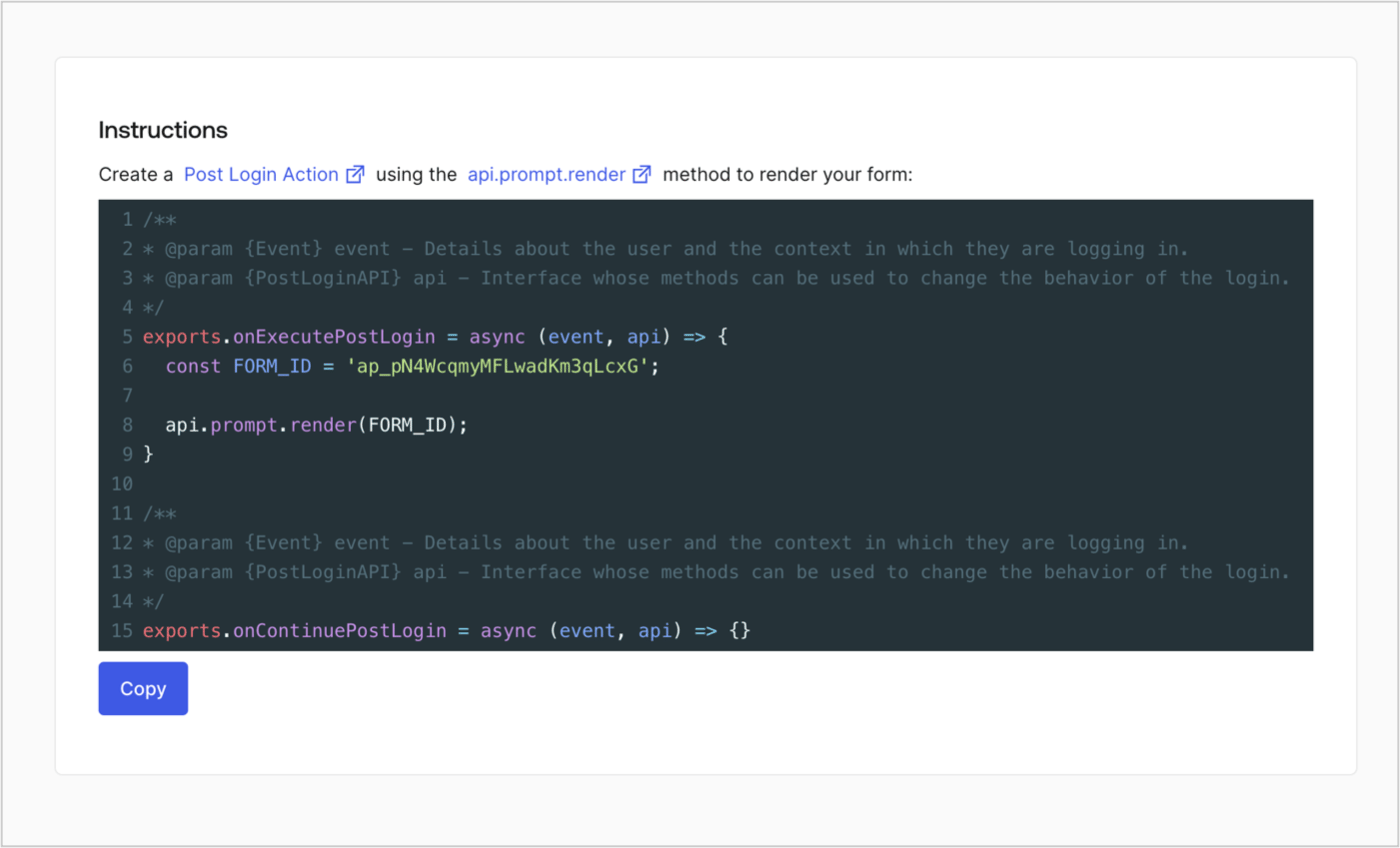
Retrieve the form render code to visually render the form with a custom Post Login Action by following these steps:

* From the Form editor, select **`<> Render`**.
* Select **Copy**.
<Frame>
  <img src="https://mintcdn.com/docs-staging-feat-docs-5554-self-service/Pf7iYJKBwyOcs1bB/docs/images/cdy7uua7fh8z/2EIUzc539sq9lwoTKbjoJv/496a864c0fc44a782c9cadca119dbfb0/embed.png?fit=max&auto=format&n=Pf7iYJKBwyOcs1bB&q=85&s=ed9da6d6c036d428fd2d08188e80c0ea" alt="Dashboard > Actions > Forms > Form > Embed" data-og-width="1400" width="1400" data-og-height="848" height="848" data-path="docs/images/cdy7uua7fh8z/2EIUzc539sq9lwoTKbjoJv/496a864c0fc44a782c9cadca119dbfb0/embed.png" data-optimize="true" data-opv="3" srcset="https://mintcdn.com/docs-staging-feat-docs-5554-self-service/Pf7iYJKBwyOcs1bB/docs/images/cdy7uua7fh8z/2EIUzc539sq9lwoTKbjoJv/496a864c0fc44a782c9cadca119dbfb0/embed.png?w=280&fit=max&auto=format&n=Pf7iYJKBwyOcs1bB&q=85&s=76451d038a0a3a1211702d8c21609946 280w, https://mintcdn.com/docs-staging-feat-docs-5554-self-service/Pf7iYJKBwyOcs1bB/docs/images/cdy7uua7fh8z/2EIUzc539sq9lwoTKbjoJv/496a864c0fc44a782c9cadca119dbfb0/embed.png?w=560&fit=max&auto=format&n=Pf7iYJKBwyOcs1bB&q=85&s=85e2f14ea73b86c6a38698d63d80f40d 560w, https://mintcdn.com/docs-staging-feat-docs-5554-self-service/Pf7iYJKBwyOcs1bB/docs/images/cdy7uua7fh8z/2EIUzc539sq9lwoTKbjoJv/496a864c0fc44a782c9cadca119dbfb0/embed.png?w=840&fit=max&auto=format&n=Pf7iYJKBwyOcs1bB&q=85&s=a0f349c3c6b8f194ac58ade18ba8188a 840w, https://mintcdn.com/docs-staging-feat-docs-5554-self-service/Pf7iYJKBwyOcs1bB/docs/images/cdy7uua7fh8z/2EIUzc539sq9lwoTKbjoJv/496a864c0fc44a782c9cadca119dbfb0/embed.png?w=1100&fit=max&auto=format&n=Pf7iYJKBwyOcs1bB&q=85&s=6c8b3312206db4aa906dd035c35c2500 1100w, https://mintcdn.com/docs-staging-feat-docs-5554-self-service/Pf7iYJKBwyOcs1bB/docs/images/cdy7uua7fh8z/2EIUzc539sq9lwoTKbjoJv/496a864c0fc44a782c9cadca119dbfb0/embed.png?w=1650&fit=max&auto=format&n=Pf7iYJKBwyOcs1bB&q=85&s=cbfde74fbc360b1243d0ae042fc5266b 1650w, https://mintcdn.com/docs-staging-feat-docs-5554-self-service/Pf7iYJKBwyOcs1bB/docs/images/cdy7uua7fh8z/2EIUzc539sq9lwoTKbjoJv/496a864c0fc44a782c9cadca119dbfb0/embed.png?w=2500&fit=max&auto=format&n=Pf7iYJKBwyOcs1bB&q=85&s=c8007fa3f79fd69670ed856ffb9d7649 2500w" />
</Frame>

## Create a Post Login Action

Create a post-login Action to render your form by following these steps:

1. Navigate to **Auth0 Dashboard > Actions > Flows > Login.**
2. Select the **+** icon and select **Build from scratch**:

   * **Name**: Enter `Render Progressive Profile Form`.
   * **Trigger**: Select `Login / Post Login`.
   * **Runtime**: Select the recommended version.
3. Select **Create**.

To configure the post-login Action:

1. Delete the existing code from the Code editor.
2. Paste the form embed code into the Code editor.
3. Edit the code to define the conditional logic that will render the form.

   ```javascript lines theme={null}
   /**
   * @param {Event} event - Details about the user and the context in which they are logging in.
   * @param {PostLoginAPI} api - Interface whose methods can be used to change the behavior of the login.
   */
   exports.onExecutePostLogin = async (event, api) => {
     const FORM_ID = 'REPLACE_WITH_YOUR_FORM_ID';

     if (
       event.stats.logins_count > 2 &&
       !event.user.user_metadata.company_name &&
       !event.user.user_metadata.job_title
     ) {
       api.prompt.render(FORM_ID);
     }
   }

   exports.onContinuePostLogin = async (event, api) => { }
   ```

   <Callout icon="file-lines" color="#0EA5E9" iconType="regular">
     The example code above will render the form when a user has a login count > 2 and is missing the user metadata company\_name and job\_title properties.
   </Callout>
4. Select **Deploy.**
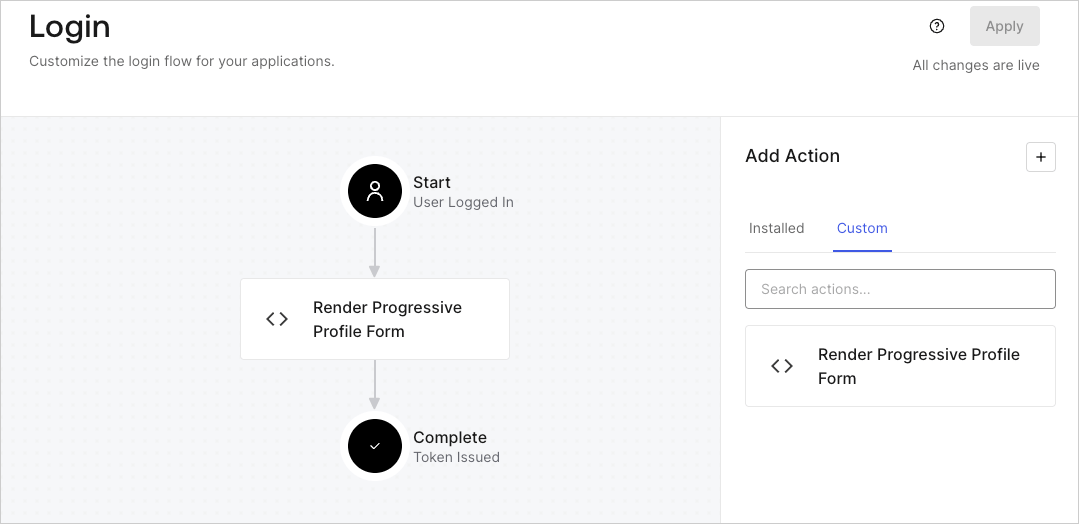
5. Drag and Drop the **Render Progressive Profile Form** Action to the **Login** flow.
   <Frame>
     <img src="https://mintcdn.com/docs-staging-feat-docs-5554-self-service/njANxEhP6RiFKeTR/docs/images/cdy7uua7fh8z/1QjjZdpTqTxx012UDN4xk9/99fba5ef4068a5688f1762eea7f42976/renderprogessiveprofile.png?fit=max&auto=format&n=njANxEhP6RiFKeTR&q=85&s=264f295df35816b21aa11edfd6133b8e" alt="Dashboard > Forms > Use Cases Progressive Profile Login Action" data-og-width="1079" width="1079" data-og-height="524" height="524" data-path="docs/images/cdy7uua7fh8z/1QjjZdpTqTxx012UDN4xk9/99fba5ef4068a5688f1762eea7f42976/renderprogessiveprofile.png" data-optimize="true" data-opv="3" srcset="https://mintcdn.com/docs-staging-feat-docs-5554-self-service/njANxEhP6RiFKeTR/docs/images/cdy7uua7fh8z/1QjjZdpTqTxx012UDN4xk9/99fba5ef4068a5688f1762eea7f42976/renderprogessiveprofile.png?w=280&fit=max&auto=format&n=njANxEhP6RiFKeTR&q=85&s=880581399b0d009fc41fb23598cc32be 280w, https://mintcdn.com/docs-staging-feat-docs-5554-self-service/njANxEhP6RiFKeTR/docs/images/cdy7uua7fh8z/1QjjZdpTqTxx012UDN4xk9/99fba5ef4068a5688f1762eea7f42976/renderprogessiveprofile.png?w=560&fit=max&auto=format&n=njANxEhP6RiFKeTR&q=85&s=00a7830f426d4ac5fea22127e5eaf80c 560w, https://mintcdn.com/docs-staging-feat-docs-5554-self-service/njANxEhP6RiFKeTR/docs/images/cdy7uua7fh8z/1QjjZdpTqTxx012UDN4xk9/99fba5ef4068a5688f1762eea7f42976/renderprogessiveprofile.png?w=840&fit=max&auto=format&n=njANxEhP6RiFKeTR&q=85&s=a8902ffb44c74121d5680e5693f115f7 840w, https://mintcdn.com/docs-staging-feat-docs-5554-self-service/njANxEhP6RiFKeTR/docs/images/cdy7uua7fh8z/1QjjZdpTqTxx012UDN4xk9/99fba5ef4068a5688f1762eea7f42976/renderprogessiveprofile.png?w=1100&fit=max&auto=format&n=njANxEhP6RiFKeTR&q=85&s=0ae484ec804c5cbcc1a5128337a8daec 1100w, https://mintcdn.com/docs-staging-feat-docs-5554-self-service/njANxEhP6RiFKeTR/docs/images/cdy7uua7fh8z/1QjjZdpTqTxx012UDN4xk9/99fba5ef4068a5688f1762eea7f42976/renderprogessiveprofile.png?w=1650&fit=max&auto=format&n=njANxEhP6RiFKeTR&q=85&s=c6f73e3ecedaa4b66e865ed83ec462fa 1650w, https://mintcdn.com/docs-staging-feat-docs-5554-self-service/njANxEhP6RiFKeTR/docs/images/cdy7uua7fh8z/1QjjZdpTqTxx012UDN4xk9/99fba5ef4068a5688f1762eea7f42976/renderprogessiveprofile.png?w=2500&fit=max&auto=format&n=njANxEhP6RiFKeTR&q=85&s=0aa645265db861e36e64f60cd332e136 2500w" />
   </Frame>
6. Select **Apply**.

### Test implementation

Test the implementation by following these steps:

1. Log in with an existing user whose login count is greater than 2 and their `user_metadata` attributes `company_name` and `job_title` have no values.
2. The post-login action in the Login flow will render the form and prompt for the information.
3. Select **Auth0 Dashboard > User Management > Users,** locate the user and verify that the `user_metadata` attributes `company_name` and `job_title` contain information.
